Step By Step Installation of Wordpress , Apache Server - Detailed Steps
Wordpress is most popular among bloggers today because of its use and features. In this blog we will see how to install wordpress step by step
I] Requirements to install wordpress
1. Xampp/Wamp Server:
In order to install wordpress and run your website you need a local server and local storage. This can be done by first installing any server like xampp or wamp.
Steps to install Xampp/Wamp:
1.1. Go to your browser and type xampp(or Wamp here I will go with Xampp)
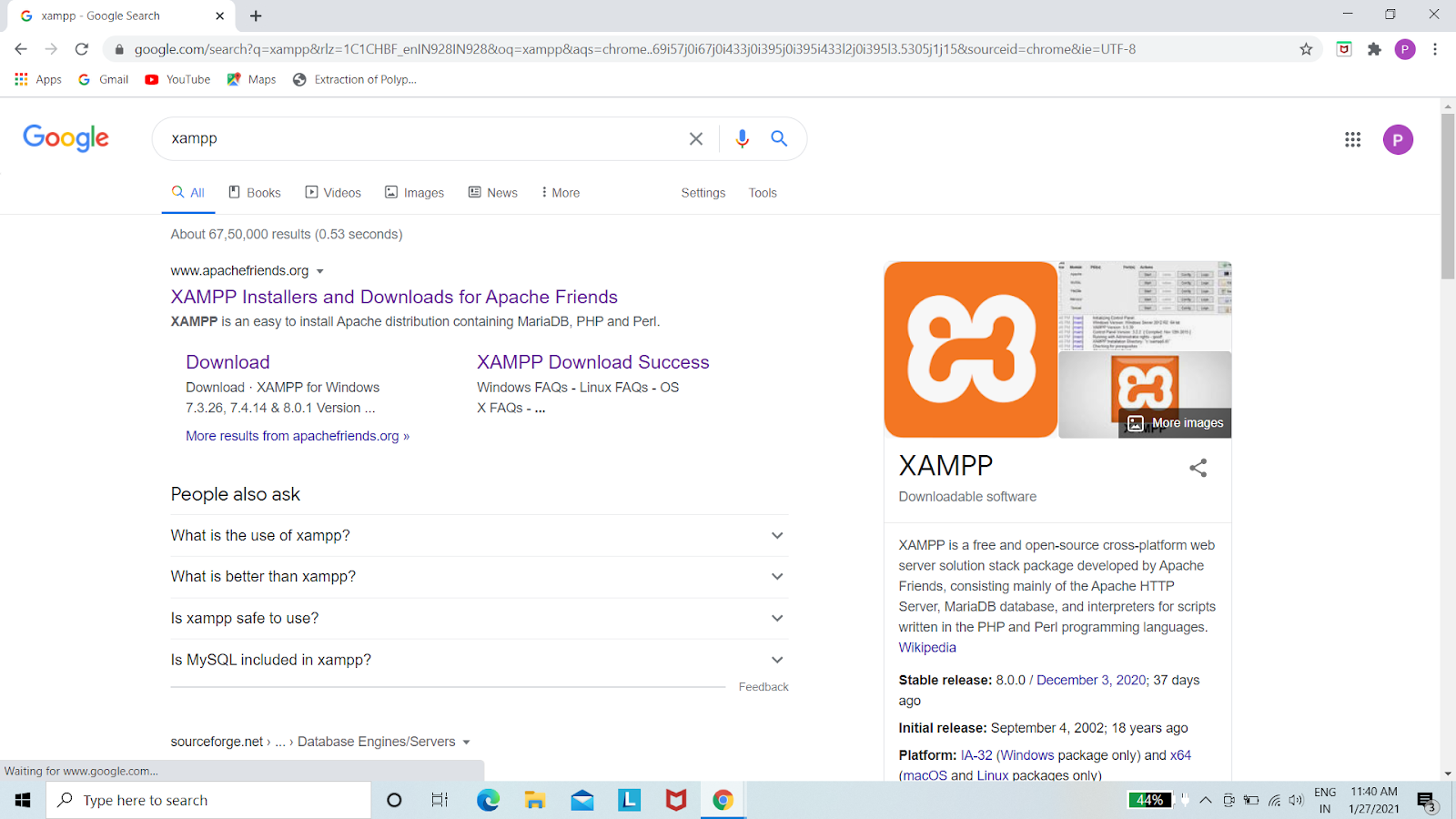
1.2. Select the first site and choose Xampp for windows

1.3. Download the file and install it by double clicking on downloded executable file. By default it will choose path in C drive and make a folder named xampp
2. Wordpress CMS
In order to install wordpress you need go to browser and type wordpress.org

click on get wordpress and then choose option of download wordpress.Your file will download automatically.
II] Installation of Wordpress in localhost
1. Go to C:\xampp\htdocs
create a folder with your webite name in htdocs folder
2. copy paste downloaded wordpress zip file and extract the file. you will get extracted wordpress file
OR
extract zip file in download folder and copy paste extracted file in your folder
3. Go to Xampp control panel by typing xampp in windows search

Click on xampp control panel you will see window as below

4. Under module you will see Apache which is your server to run your website and MySql which is your database storage. In actions you need to start Apache and Mysql

5. Now go to browser and type localhost/phpmyadmin.Click enter.


6. Click on Database and create a new database with name of your folder/websitename(use same name which you have given to your folder in htdocs)
click on create

7. Now open new window tab and type
localhost/website name press enter

8. You will go to wordpress window and click on let's go
9. You will get a form with database name,username , password, databasehost,
fill in database name that you have created.
username as root
password keep empty
and rest as it is
10.Click on submit. Click on run the install
11.Fill the form and click on install wordpress
Your wordpress has been installed!!!
Comments
Post a Comment